Written by Jackson Pearce Student engineer and creator of TalonTodo
I missed a major assignment deadline my sophomore year. Not because I forgot about it—I knew it was coming. But it was in my class notes, my task app had it listed, and my professor mentioned it in class. The problem? Nothing was synced. I had to manually check three different places to see what was due, and in the chaos of midterms, I missed updating one of them.
That's when I realized I needed everything in one place. Not just tasks, not just classes, but everything—assignments, deadlines, study sessions, personal commitments, work shifts. All synchronized, all visible, all the time.
This frustration was a big part of why I built TalonTodo. I needed calendar sync that actually worked for students.
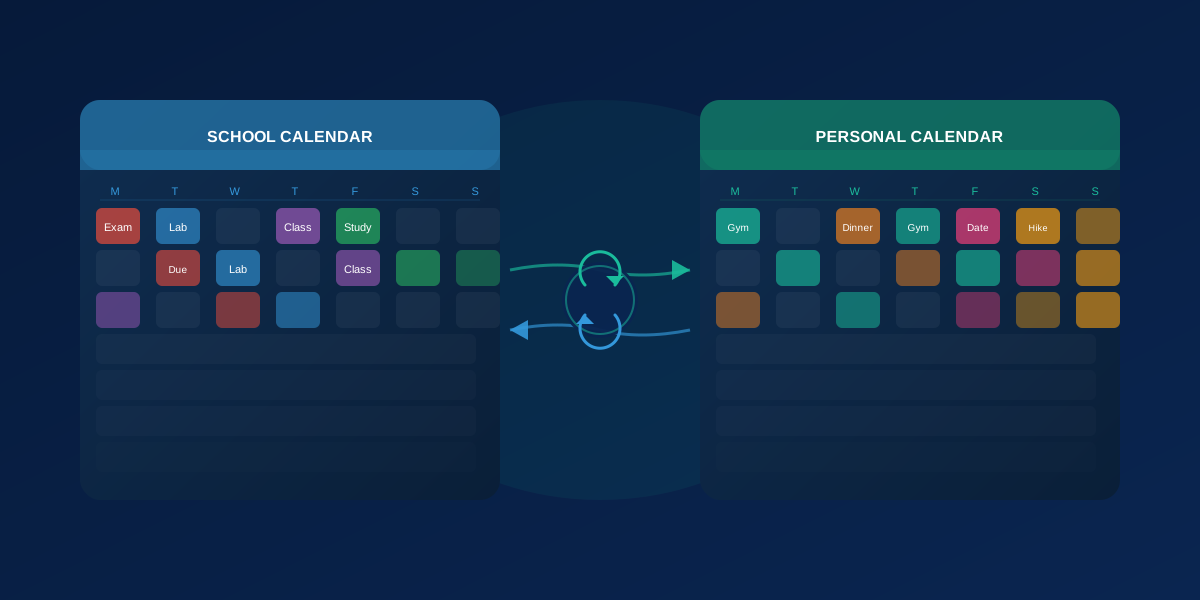
Why Calendar Sync Matters for Students
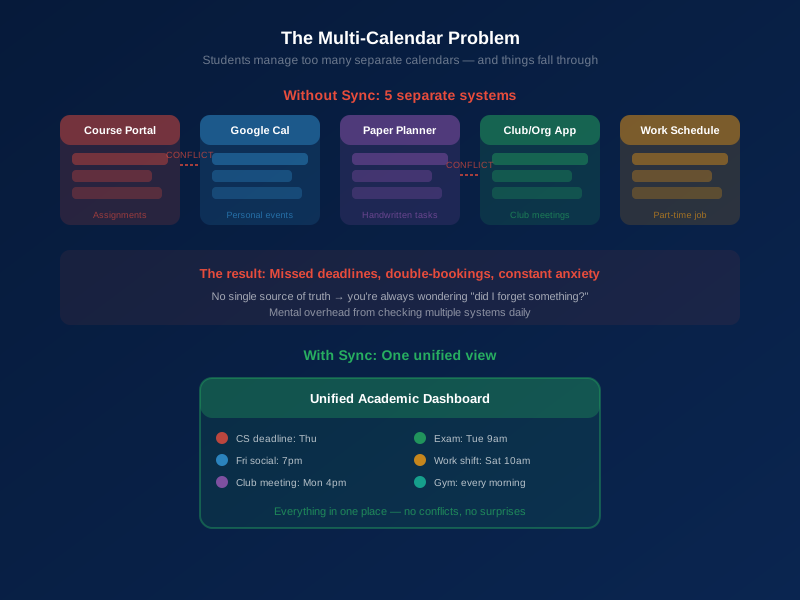
Modern students manage multiple calendars:
- Academic calendar: Classes, exams, university events
- Assignment deadlines: Papers, projects, homework due dates
- Personal calendar: Work, appointments, social activities
- Study schedule: Dedicated study blocks for each class
When these calendars aren't synchronized, you risk missing important deadlines, double-booking yourself, forgetting commitments, poor time allocation, and increased stress.
I used to have my classes in Google Calendar, assignments in a task app, work schedule on my phone's calendar, and study plans in a notebook. Nothing talked to each other. I spent more time trying to coordinate everything than actually doing work.
Calendar sync solves these problems by bringing everything together in one unified view.
Benefits of Calendar Synchronization
Single Source of Truth
With synchronized calendars, you see all commitments in one place. No more switching between apps or missing information. When I sync everything to one calendar, I can see my entire life at a glance.
This was a game-changer for me. Instead of checking multiple places, I open one app and see everything—classes, assignments, work, personal commitments, study time. It's all there.
Conflict Prevention
Synchronized calendars help identify scheduling conflicts before they become problems. I can see if a study session conflicts with work, if an assignment deadline falls during a busy period, if I've overcommitted myself.
Before sync, I'd realize conflicts too late. Now I see them weeks in advance and can adjust.
Better Time Management
Seeing all commitments together helps you identify available time blocks, balance academic and personal commitments, allocate study time effectively, and plan around busy periods.
I used to think I had no free time. Then I synced everything and realized I had plenty of time—I was just bad at seeing it because it was scattered across different places.
Reduced Stress
A comprehensive calendar view reduces anxiety. No surprises—you see everything coming. Clear visibility of upcoming commitments. Better ability to plan ahead. Less mental load from remembering everything.
I used to feel constantly behind because I couldn't see the full picture. Now I can see what's coming weeks in advance, which lets me plan and reduces stress significantly.
Improved Planning
Synchronized calendars enable better planning. You can see the big picture of your schedule, identify patterns and busy periods, plan ahead for heavy workloads, and balance commitments more effectively.
Setting Up Calendar Sync
Choose Your Primary Calendar
Select one calendar as your primary system. This becomes your master calendar that everything syncs to.
Options:
- Google Calendar (most widely supported)
- Apple Calendar (good for Mac/iOS users)
- Outlook Calendar (common in academic environments)
- Other digital calendars
I use Google Calendar as my primary because it syncs with everything and works across all my devices. But choose what works for you.
Enable Two-Way Sync
Two-way sync ensures changes in one calendar reflect in others. Changes in your task app update your calendar. Changes in your calendar update your task app. Updates propagate across all connected systems.
This is crucial. If I add an assignment in TalonTodo, it should appear on my calendar. If I add a personal event on my calendar, my task app should know about it so it doesn't schedule work during that time.
Connect Your Tools
Link your calendar with other productivity tools:
- Task management apps: Assignments appear as calendar events
- Email: Meeting invitations automatically add to calendar
- Academic portals: Sync course schedules directly
- Study apps: Schedule study blocks that sync
I connect TalonTodo to Google Calendar, my email to Google Calendar, and my academic portal to Google Calendar. Everything flows to one place.
Strategies for Academic Calendar Management
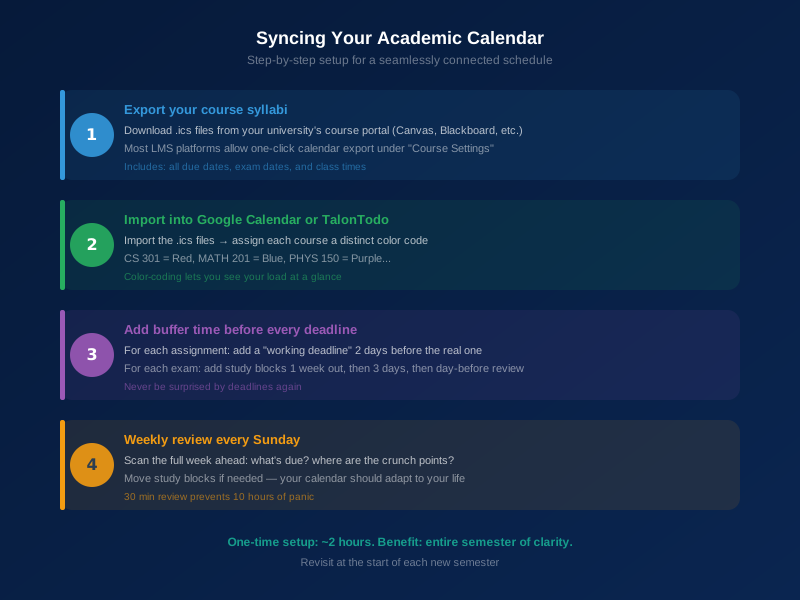
Color-Code by Category
Use colors to visually distinguish types of activities. This makes scanning your calendar easier and faster.
My color system:
- Red: Urgent deadlines and exams
- Orange: Important assignments due soon
- Blue: Regular class time
- Green: Study blocks
- Purple: Personal time and commitments
- Yellow: Work shifts
When I look at my calendar, I can instantly see what type of activity each block is. This helps me understand my day at a glance.
Block Study Time
Schedule dedicated study blocks for each class. Review course requirements, estimate weekly study time needed, block out regular study times, and sync these blocks to your calendar.
Having study time scheduled prevents it from being forgotten or overlooked. I block 2-3 hours per class per week, and it's on my calendar just like classes are.
Include Assignment Deadlines
Add all assignment deadlines to your calendar. When the assignment is due, when you want to start working on it, milestone deadlines for large projects, and review and revision time.
Deadlines on your calendar ensure you see them coming. I add deadlines as soon as I know about them, and I also add "start working" dates a week or two before.
Plan Around Your Energy
Schedule activities according to your natural energy rhythms. High-energy tasks during peak hours, low-energy tasks during low-energy times, important work when you're most alert, routine tasks during less productive periods.
I'm a morning person, so I schedule difficult assignments and study sessions in the morning. Afternoons are for routine tasks and review work.
Use Calendar Alerts
Set reminders for important events. Class start times (15 minutes before), assignment deadlines (1 day, 1 week before), exam dates (1 week, 1 day before), study sessions (30 minutes before).
Alerts help you prepare and prevent forgetting. I set multiple alerts for important deadlines—one week before, one day before, and the day of.
Calendar Sync Best Practices
Regular Review and Maintenance
Spend a few minutes weekly reviewing your calendar. Check for conflicts or overloaded periods, adjust study time blocks as needed, add new commitments promptly, and remove or update outdated events.
I do a weekly calendar review every Sunday. I look at the upcoming week, check for conflicts, adjust as needed, and make sure everything is up to date.
Keep Everything Current
Update calendars immediately when plans change. If a deadline shifts, update it right away. If a class is canceled, mark it immediately. If you add a new commitment, enter it promptly. If something is postponed, reschedule it.
Current calendars are useful calendars. Outdated calendars are worse than no calendar because they give you false information.
Use Consistent Naming Conventions
Develop consistent naming patterns for calendar events. This makes searching and filtering easier.
My naming conventions:
- "Class: [Subject] - [Location]"
- "Deadline: [Assignment Name] - [Class]"
- "Study: [Subject] - [Topic/Chapter]"
- "Meeting: [Group/Team] - [Purpose]"
- "Work: [Shift Time]"
When I search my calendar, I can find things quickly because I know the pattern.
Share Selectively
Share your calendar with people who need to see it. Group members for project coordination, roommates for shared space planning, family members for communication, close friends for social planning.
Use appropriate privacy settings for different calendar components. I share my class schedule with my family so they know when I'm busy, but I keep personal events private.
Use Multiple Calendars Strategically
Create separate calendars for different aspects of your life. Academic calendar (classes, deadlines, exams), personal calendar (work, appointments, social), study schedule calendar, project calendar (for specific large projects).
Layer these calendars for a complete view while maintaining organization. I have separate calendars for classes, assignments, work, and personal, but I view them all together.
Advanced Calendar Techniques
Buffer Time
Add buffer time between events. 15 minutes between classes and meetings, buffer around study blocks, time for transitions and preparation, space to handle unexpected tasks.
Buffers prevent scheduling conflicts and reduce stress. I add 15-minute buffers between everything, which gives me time to transition and handle unexpected issues.
Time Blocking for Focus
Block large chunks of time for focused work. 2-3 hour blocks for major projects, morning blocks for difficult tasks, afternoon blocks for routine work, evening blocks for review and preparation.
Large blocks allow deep work without interruption. I block 3-hour chunks for major assignments, and I protect those blocks fiercely.
Theming Days
Assign themes to different days. Monday: Planning and organization. Tuesday-Thursday: Focused class work. Friday: Review and catch-up. Weekend: Major projects and personal time.
Theming helps you mentally prepare for the day's focus. When I see it's Tuesday, I know it's a focused work day, and I plan accordingly.
Weekly Planning Ritual
Dedicate time each week to plan. Review upcoming week in calendar, identify priorities and deadlines, adjust time blocks as needed, prepare for busy periods, plan personal time and breaks.
I do this every Sunday evening. It takes 30 minutes, but it sets me up for a successful week.
Tools for Calendar Synchronization
Google Calendar Sync
Most widely supported calendar for sync. Integrates with many apps, works across devices and platforms, supports sharing and collaboration, free and accessible.
I use Google Calendar because it syncs with everything I need—TalonTodo, my email, my academic portal, everything.
Task Management Integration
Many task management apps sync with calendars. Assignments appear as calendar events, deadlines show on your calendar, study sessions can be scheduled, reminders sync across systems.
TalonTodo syncs assignments and deadlines to your calendar automatically. When I add an assignment, it appears on my calendar. When the deadline approaches, I get reminders.
Email Calendar Integration
Most email systems integrate with calendars. Meeting invitations automatically add events, email reminders become calendar reminders, shared calendars appear in email, sends updates when events change.
I have my email connected to my calendar, so meeting invitations automatically appear. No manual entry needed.
Academic Portal Integration
Many universities offer calendar integration. Course schedules sync automatically, assignment deadlines appear in calendar, exam dates sync directly, university events included.
Check if your university offers this. It saves a lot of manual entry.
Common Calendar Sync Challenges
Overwhelming Amount of Information
Too many events can make calendars hard to read. Use colors to distinguish types, create separate calendars and toggle visibility, focus on what matters most, filter views by category.
I use separate calendars and toggle them on and off. Sometimes I only want to see classes and deadlines, so I hide personal events. Sometimes I want to see everything.
Conflicts and Overcommitment
Synchronized calendars reveal scheduling conflicts. Use conflict detection features, prioritize when conflicts arise, learn to say no when overloaded, adjust time blocks when needed.
When I see a conflict, I evaluate what's more important and adjust. Sometimes that means saying no to something. Sometimes it means rescheduling.
Technical Issues
Sync isn't always perfect. Verify sync settings regularly, check for updates to apps, troubleshoot when events don't appear, have a backup view of important dates.
I check my sync settings monthly to make sure everything is still connected. Sometimes updates break connections, so I verify regularly.
Privacy Concerns
Sharing calendars raises privacy questions. Use appropriate privacy settings, create separate calendars for different audiences, share only what's necessary, review sharing settings regularly.
I keep personal events on a separate calendar that I don't share. Only my class schedule is shared with family.
Measuring Success
Track how calendar sync impacts your academic life. Fewer missed deadlines or commitments, better balance between academic and personal time, reduced stress about scheduling, more effective use of time, improved academic performance.
Since implementing calendar sync, I've missed zero deadlines. I can see conflicts weeks in advance. I have better work-life balance because I can see when I have free time. The impact has been huge.
How TalonTodo Handles Calendar Sync
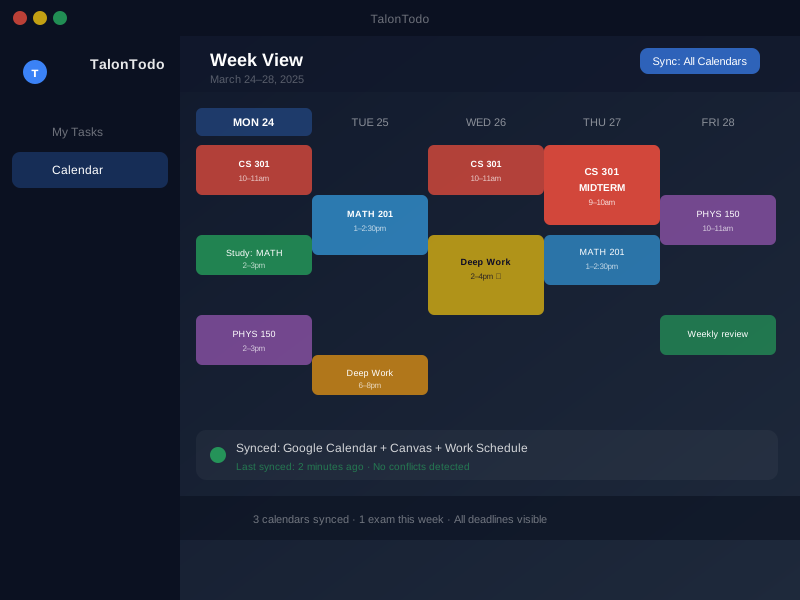
I built calendar sync into TalonTodo because I needed it to work seamlessly. Here's how it helps:
Why I built it: I was frustrated with manual calendar entry. Every time I added an assignment, I had to also add it to my calendar. Every time something changed, I had to update multiple places. I needed automatic sync.
How it helps: TalonTodo automatically syncs assignments and deadlines to your Google Calendar or Apple Calendar. When you add an assignment, it appears on your calendar. When you schedule a study session, it blocks time. Everything stays in sync automatically.
Feature example: The smart scheduler looks at your calendar to suggest when to work on assignments. If you have a free block on Tuesday afternoon, it suggests scheduling work then. If your calendar is full, it suggests starting earlier. It uses your actual availability, not just deadlines.
The calendar integration also shows your tasks alongside your other commitments. You can see how assignments fit into your overall schedule, which helps with planning and prevents overcommitment.
Getting Started
Ready to sync your calendars? Start this week:
- Choose your primary calendar system
- Connect your task management tool
- Sync your academic course schedule
- Block out study time for each class
- Add all upcoming deadlines and exams
- Review weekly and adjust as needed
Start with one integration, master it, then add more. Calendar sync is powerful, but it takes time to set up properly.
The key is getting everything in one place. Once you can see your entire schedule at a glance, planning becomes much easier, and you'll never miss a deadline again.
The list the calendar is syncing
A calendar is only as complete as the assignments you put on it. A Free Assignment Tracker for Students is where those due dates live before they show up on the week.
About the author Jackson Pearce is a student engineer and the creator of TalonTodo, a productivity app designed to help students manage projects, deadlines, and daily tasks more effectively.